Unlike many Android smartphones, the Apple iPhone doesn’t come with a built-in notification LED that lights up when you receive calls or messages. However, Apple offers a smart alternative through an Accessibility feature that provides visual alerts by flashing the camera light.
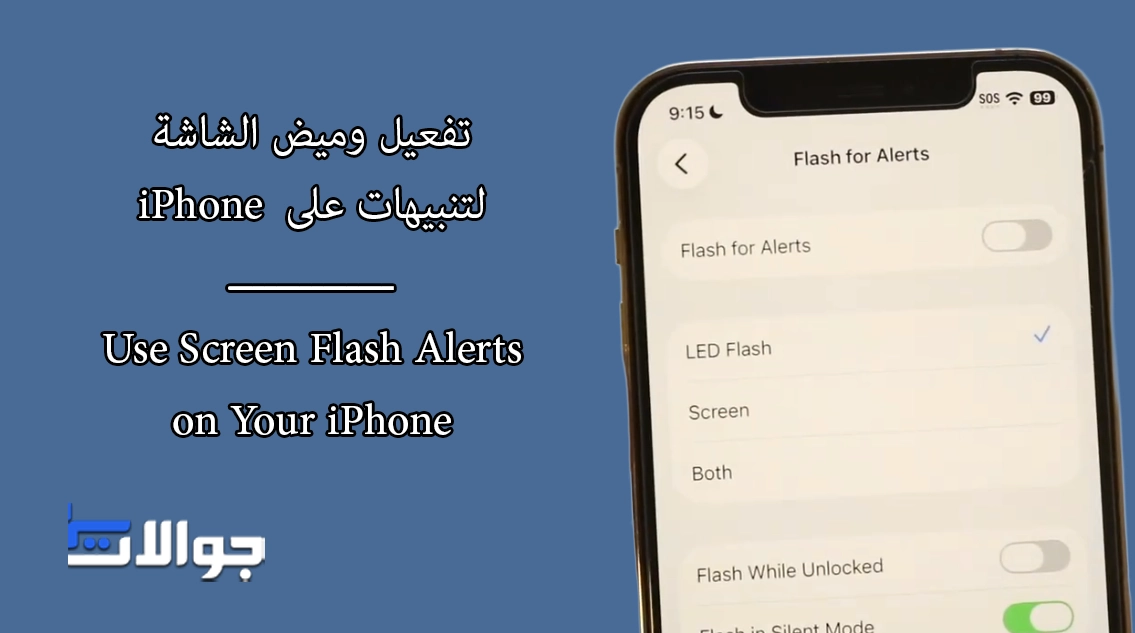
With the release of iOS 26.2, Apple has taken this feature a step further by allowing the front display to flash as well — not just the rear camera LED.
Why Screen Flash Alerts Feature Is Useful
Even if you don’t have hearing difficulties, visual alerts can be extremely practical in everyday situations. For example:
When you’re in a quiet place like a library or meeting
When your iPhone is set to silent mode
When vibrations are easy to miss
In iOS 26.2, you can choose whether alerts flash on the screen, the camera LED, or both. This ensures you’ll notice incoming notifications no matter how your iPhone is placed on a table.
How to Enable Flash Alerts on iPhone (iOS 26.2)
To turn on screen or LED flash alerts, follow these steps:
Open the Settings app on your iPhone
Go to Accessibility
Under the Hearing section, tap Audio & Visual
Scroll down and select Flash for Alerts
Enable the feature, then choose one of the following:
LED Flash
Screen Flash
Both
You’ll also find additional options that let you:
Allow flashing when the device is unlocked
Enable flash alerts even when Silent Mode is turned on